DropTech™ Headphones with Mic
Price range: $19.95 through $27.95
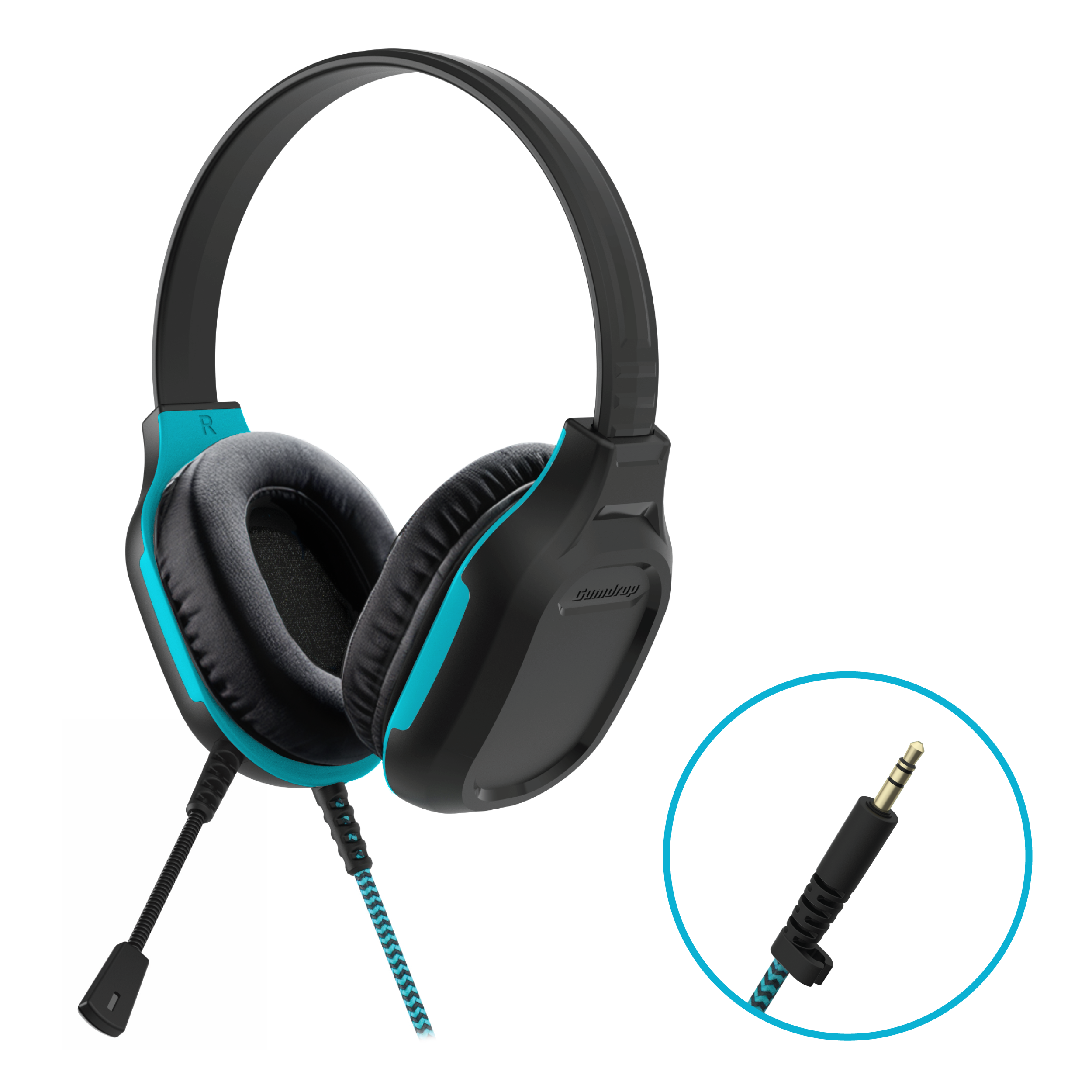
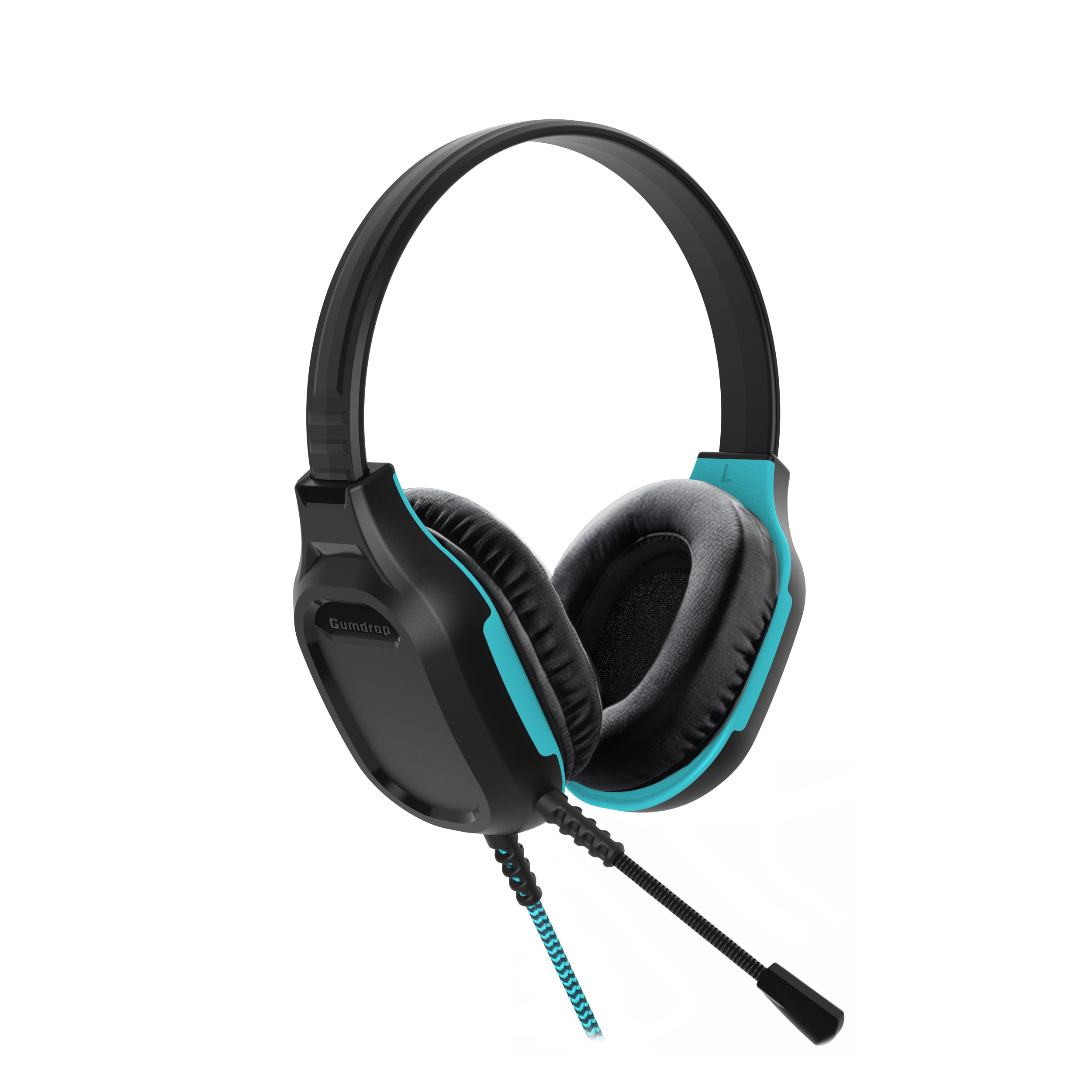
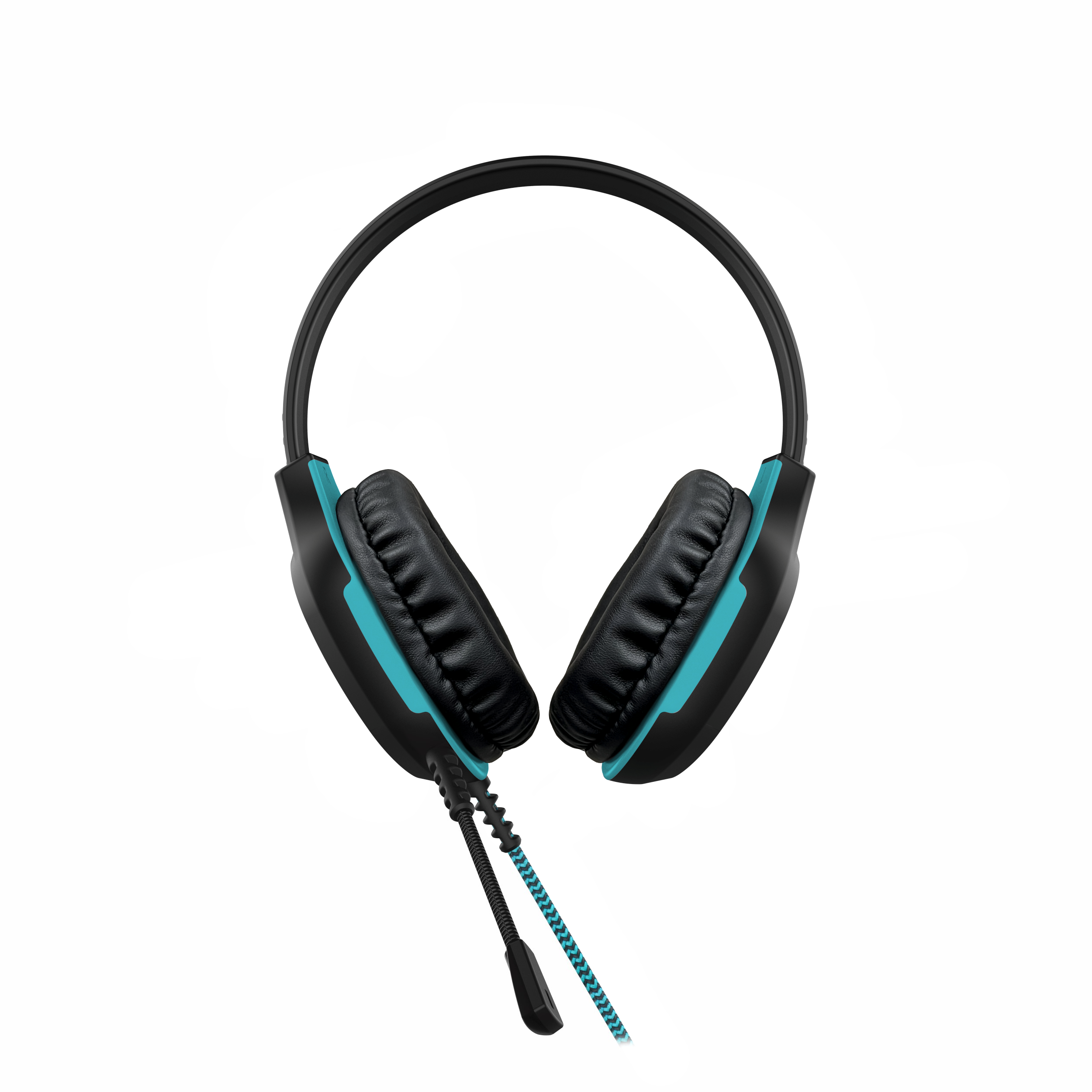
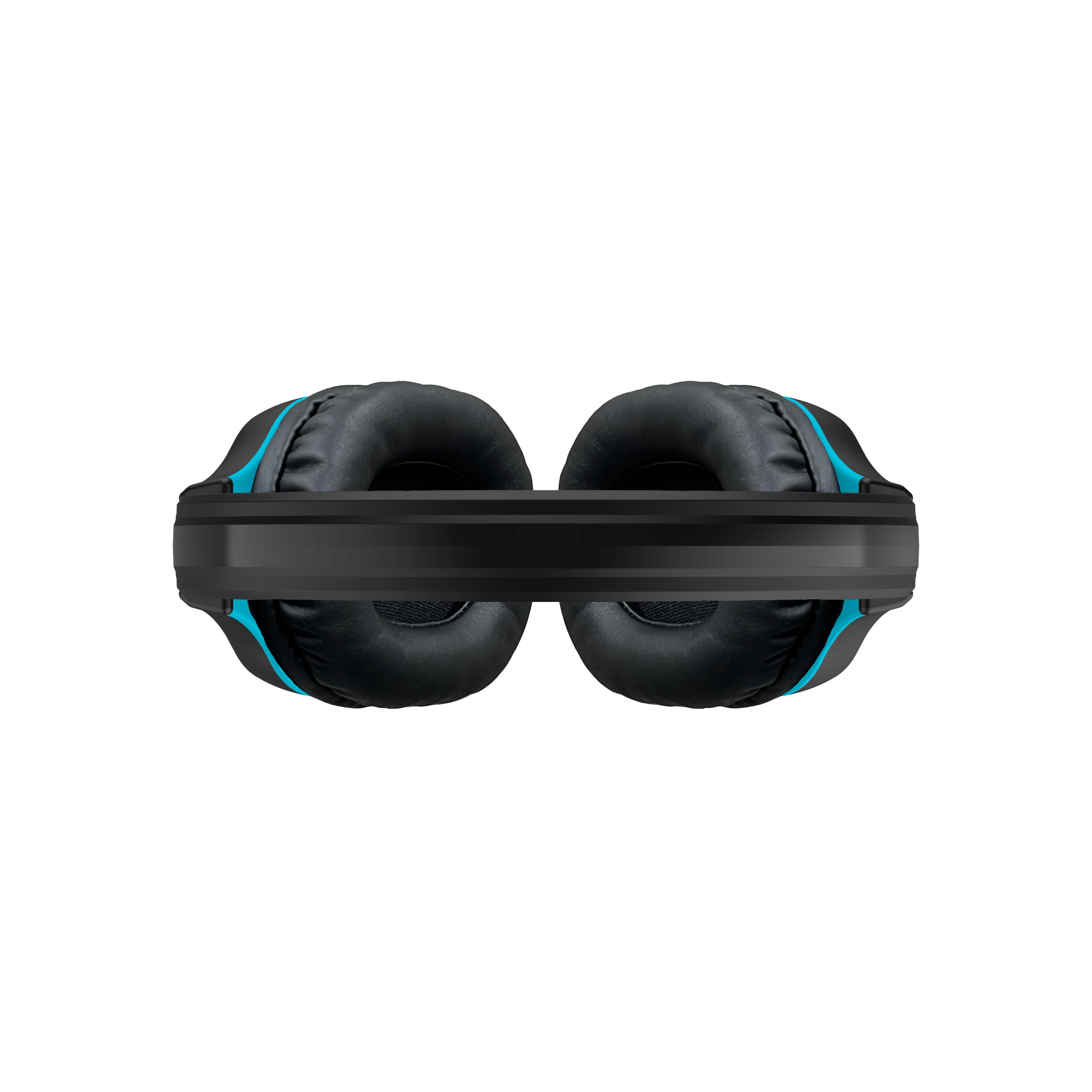
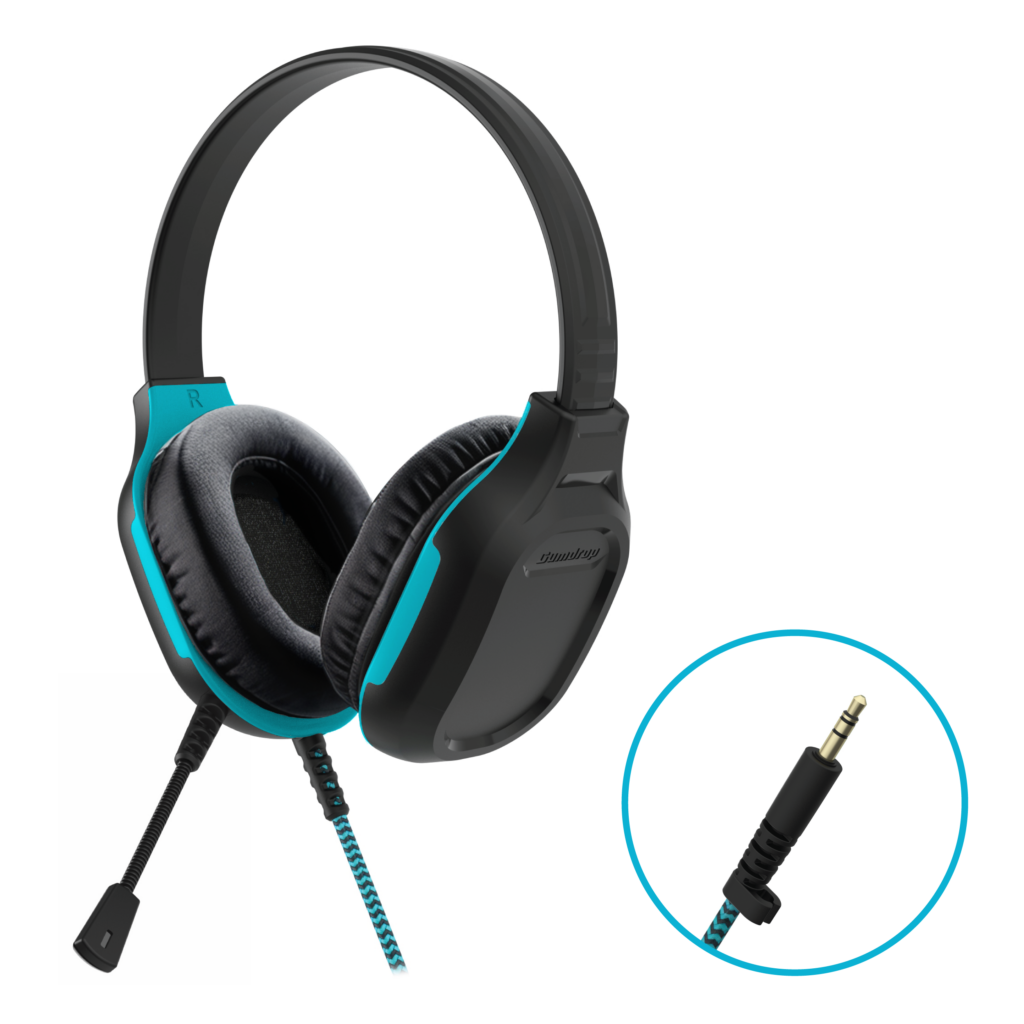
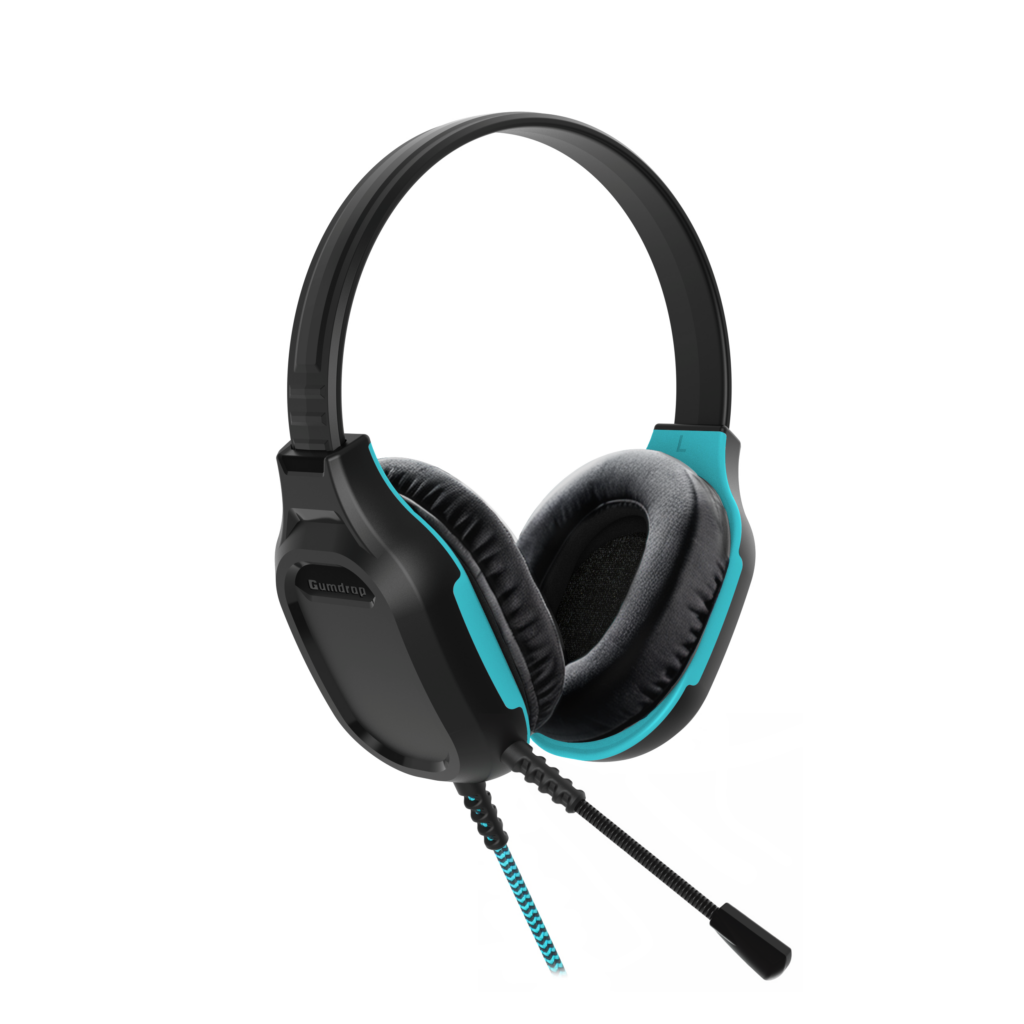
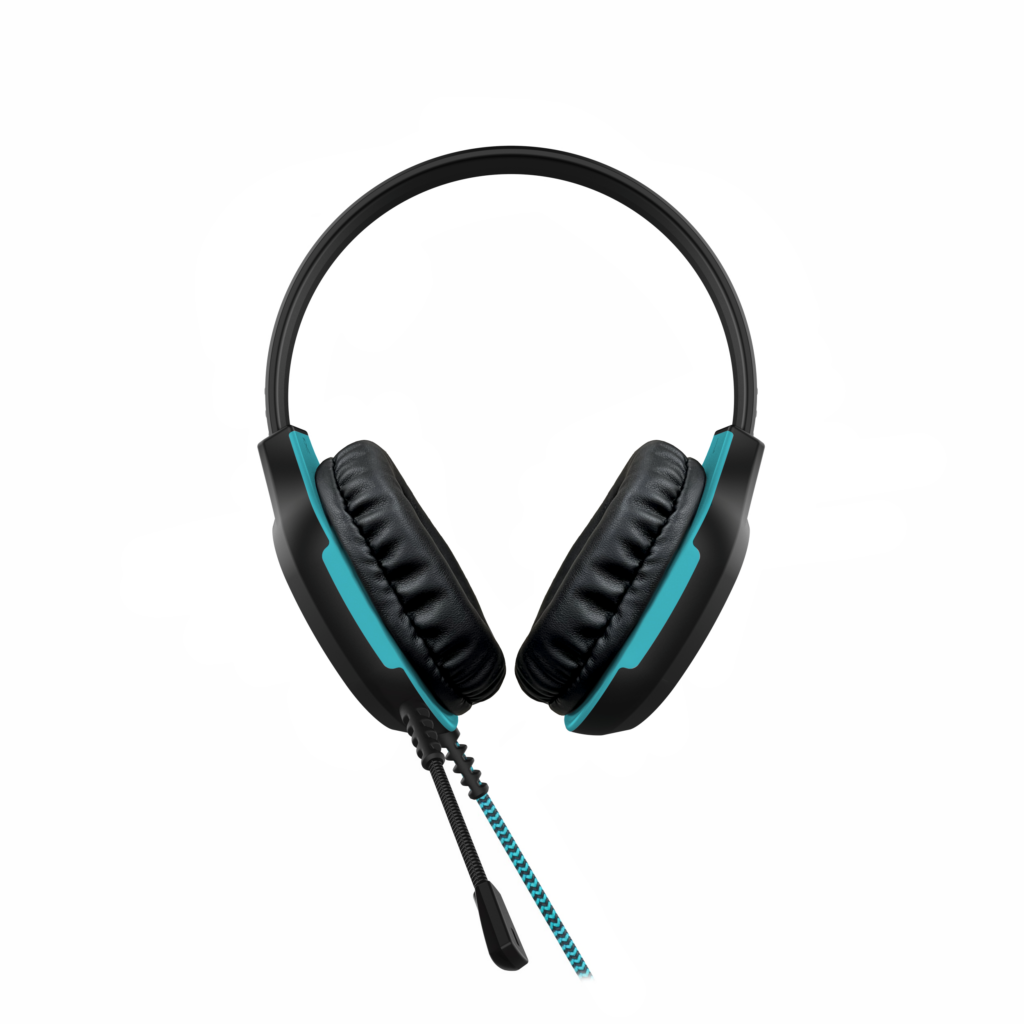
Confidently take on testing season with Gumdrop’s reliable, stereo sound DropTech Headphones with Mic. With best-in-class drop protection at an affordable price, these USB-C headphones will ace any test.
Improved Compatibility
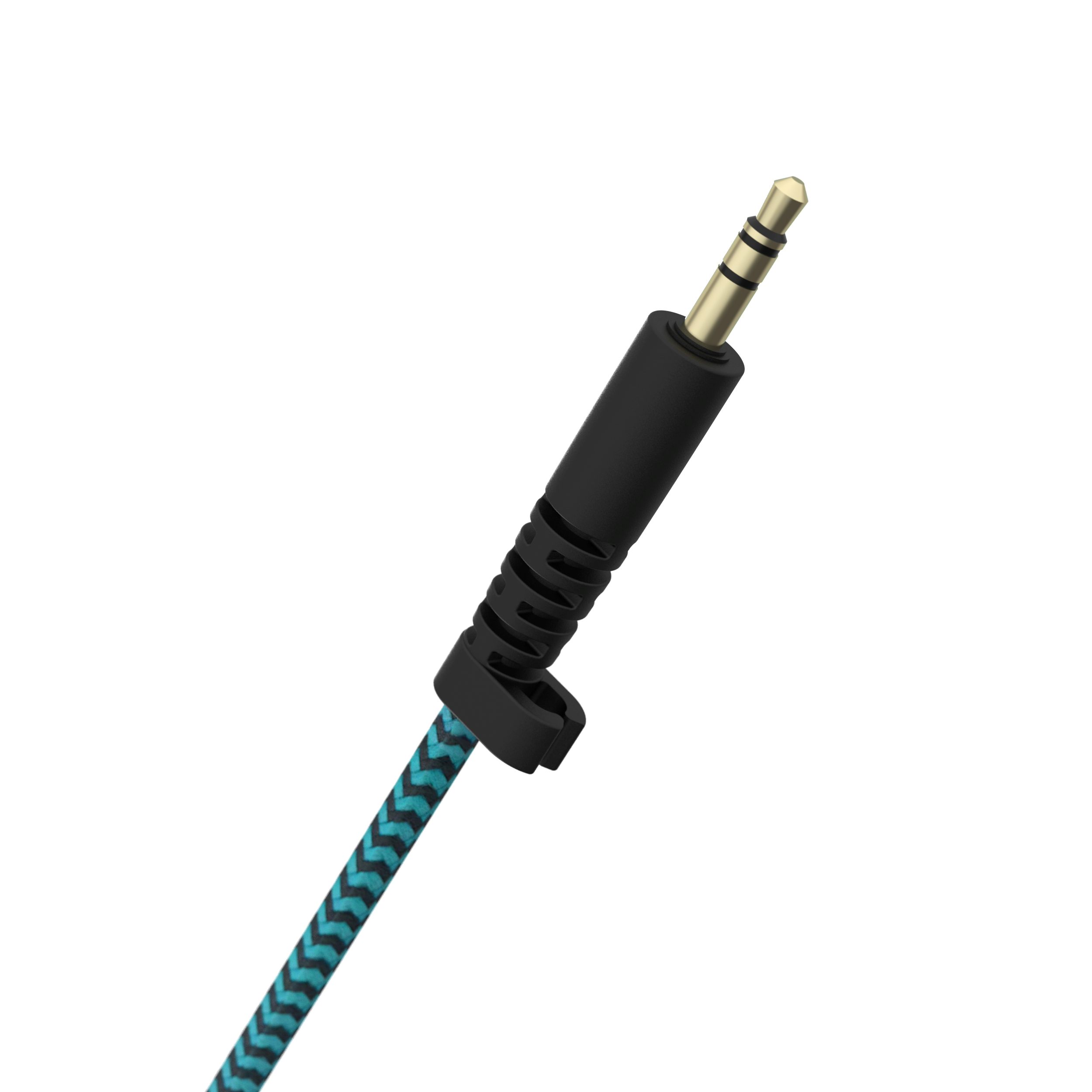
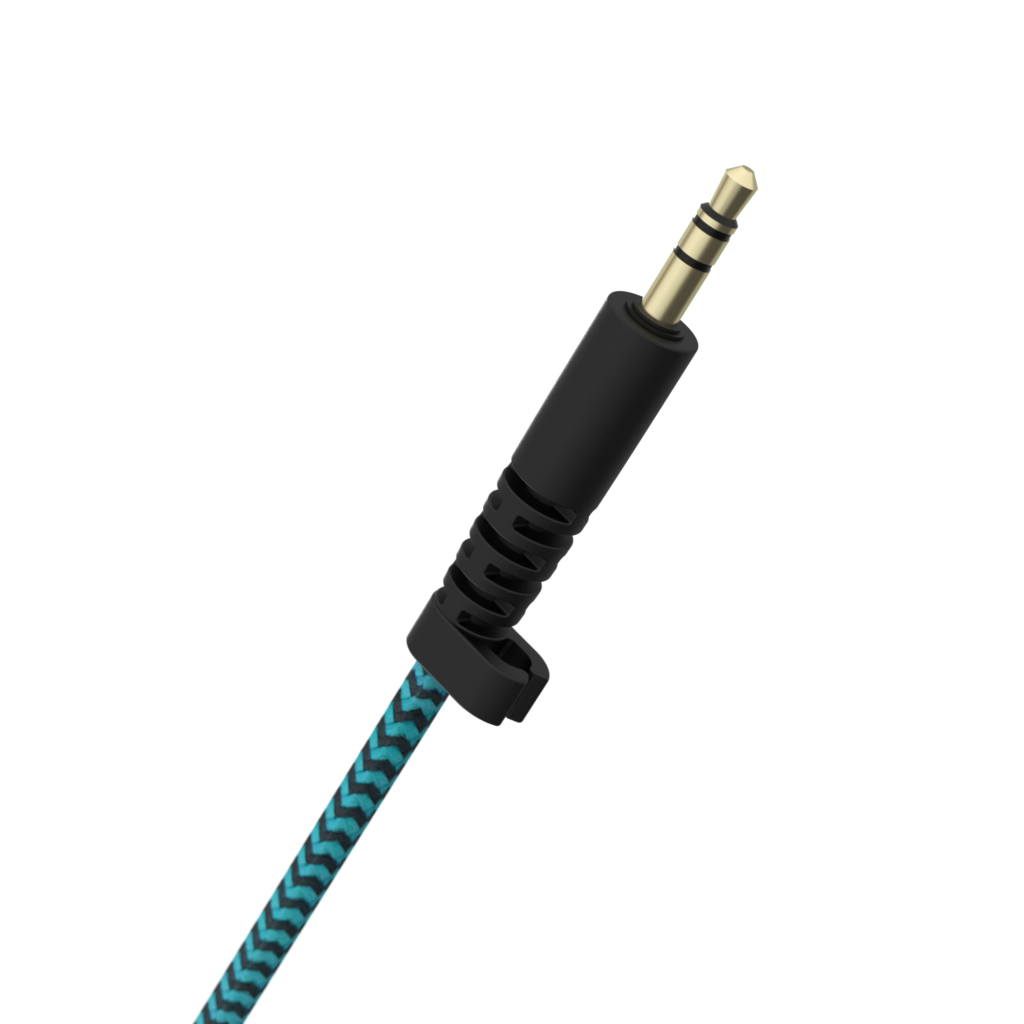
The DropTech Headphones are are compatible with: USB-C, USB-A and 3.5mm.
Student Proof and Safe
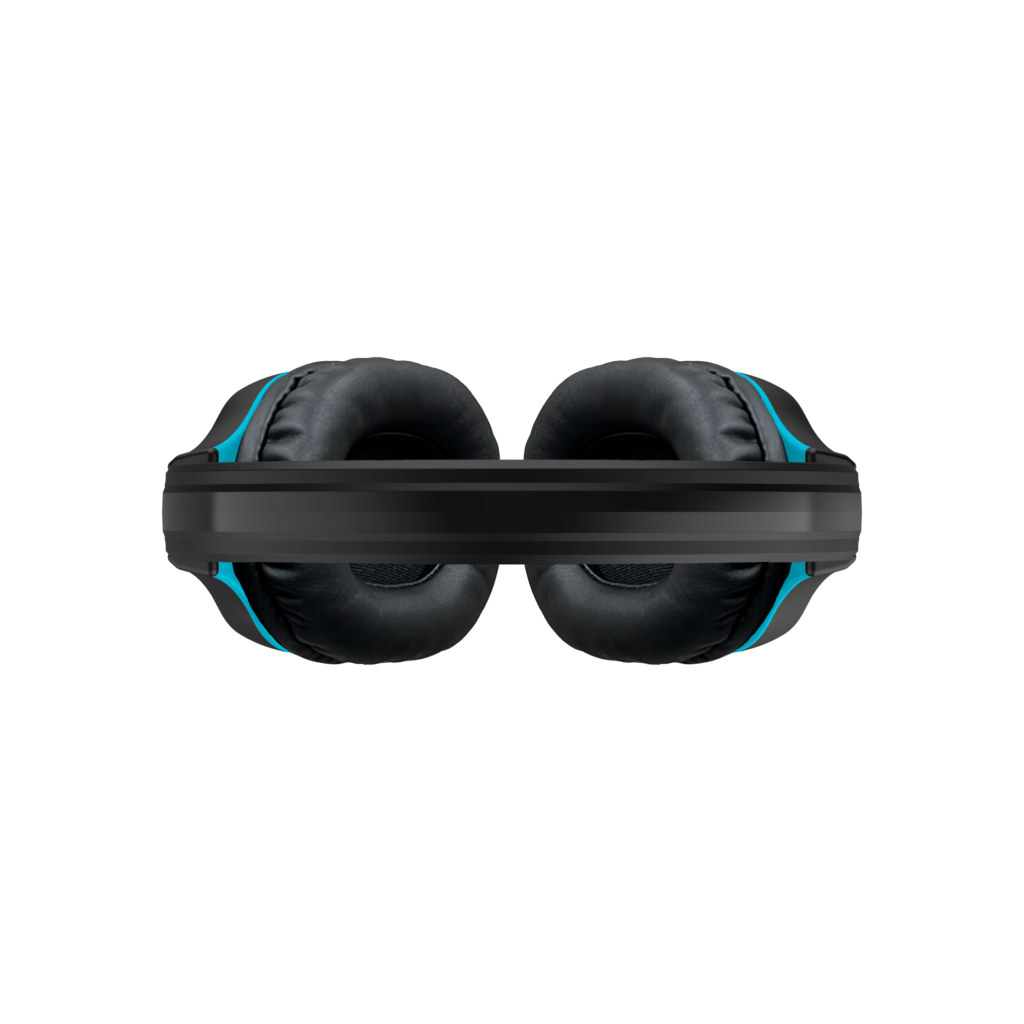
Every feature was added with students in mind. The twistable, break-resistant, and adjustable headband was tested to fit students comfortably, while a flexible microphone allows for long-term use. Do your students chew on cords? The braided, four (4) foot long, cord is chew-proof to complete the student-proof design.
Our volume-limiting design offers a sound pressure between 75-110 dB, loud enough to hear but at a safe volume.
Teacher Approved
No installation required: A simple plug and play design saves time and hassle. Plus, each pair of headphones is drop tested 26 times at 6 feet. Teachers will enjoy headphones that stand up to the test of time – with less fixes and less replacements.
Available and Ready to Ship
Prepare for testing season now with these reliable, student-safe headphones. They’re in stock and ready to ship now.
This plug-and-play headset works with any PC or Mac computer equipped with a USB-A port or adapter, requiring no software installation.
Gumdrop is proud to partner with all preferred resellers. View a list of approved resellers here.





Techshell Extreme 6-26
Frequestly Asked Questions
Do Gumdrop headphones offer noise-canceling microphones and earphones?
While our headphones do not feature active noise cancelation, the earphones are equipped with soft pads that help dampen background noise.
How do I replace the ear pads for DropTech Headphones?
To replace ear pads:
- Remove Old Ear Pad: Gently pry the ear pad up. A tool may be required.
- Attach New Ear Pad: Align with the ear cup and push firmly until it locks securely.
What is the best way to clean DropTech Headphones?
To clean, simply spray cleaning liquid onto a cloth and then wipe. You should use a water-based cleaner with a ratio of 70% isopropyl alcohol to 30% water.
Please note the following:
- Do not spray directly onto the headphones.
- Do not use other alcohol-based cleaners or bleach.
What do I do when I can’t hear anything from my DropTech Headphones when it’s plugged into my device?
If you can’t hear any audio from your headphones, try the following:
- Check and make sure the cable is fully plugged into your device.
- Check that the other end of the cable, with the headset icon, is fully plugged into the ear cup and in the locked position.
- Check your device’s audio settings and make sure the headphones is selected.
- If you are using a video conferencing platform, make sure your headphones are selected for your Speaker and Microphone.
- Make sure your audio is not set to mute and the volume is not at zero.
- If you are still unable to hear audio, please contact Support for further assistance.
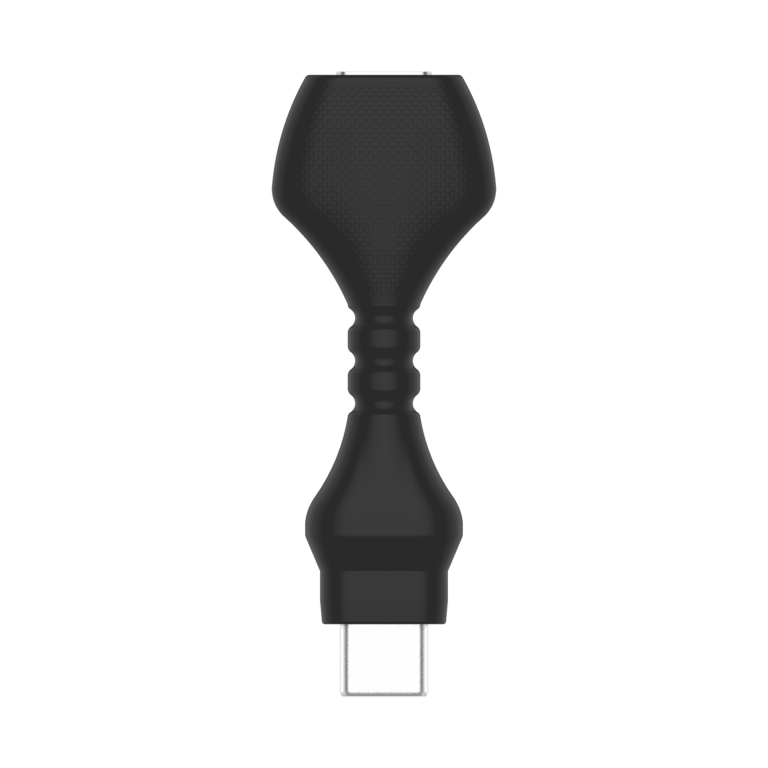
Instructions for use of USB-C to 3.5 mm Adapter
-
Plug in the Adapter:
- Insert the USB-C to 3.5 mm adapter into the iPad’s USB-C port
-
Connect the Headphones:
- After the adapter is securely connected to the iPad, plug the BH headphones into the 3.5 mm port on the adapter.
- Ensure that both connections are secure to avoid any issues with audio output.